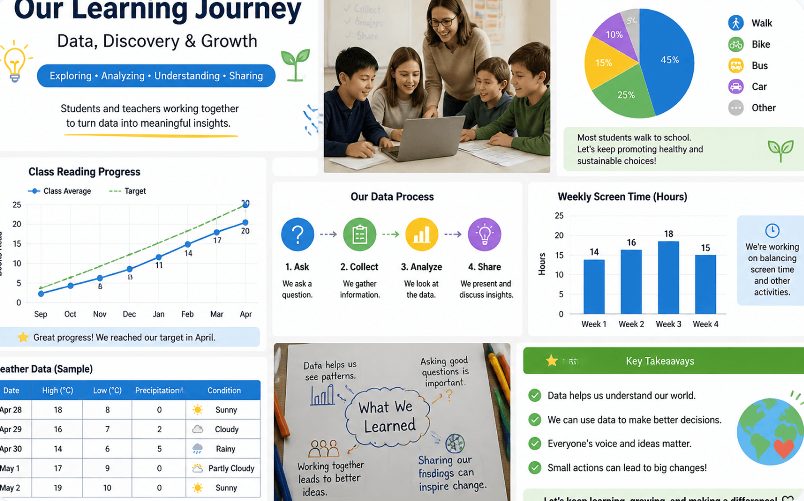
The fear of a blank canvas is real. For many people, the idea of creating a visually appealing layout from scratch is intimidating, a skill they believe requires years of design training. This perception often prevents them from even trying to create graphics for social media, school projects, or personal keepsakes. The result is a reliance on single, unedited photos or, worse, no visual content at all. However, this barrier has been significantly lowered by a specific category of tools: the Online Collage Maker.
These platforms are designed with the explicit goal of removing complexity. They provide structure, guidance, and automation, effectively acting as a design assistant for users of all skill levels. The core premise is that you do not need to be a graphic designer to produce a professional-looking collage. You simply need to select your photos and make a few straightforward choices.
The Guiding Hand of Templates
The most fundamental feature that makes an Online Collage Maker accessible is the template. A template is essentially a pre-designed layout that dictates where photos, text, and graphic elements should go. For someone who has never designed a layout, this solves the first and most difficult problem: where to start.
When you open a tool like the one found within the TeraBox AI workspace, you are not faced with a blank page. Instead, you are presented with a variety of layout options, often categorized by their use case. These might include:
Grid Layouts: A classic, clean arrangement of evenly sized photos (e.g., 2×2, 3×2). This is perfect for showcasing a series of related images, like a product shot from different angles or a set of family portraits.
Mosaic or Scrapbook Layouts: A more dynamic, freeform arrangement where photos can overlap and be of different sizes. This style is excellent for telling a story with a more artistic and casual feel.
Social Media Templates: These are pre-sized for a specific platform, like an Instagram story or a Pinterest pin, and often include spaces for text overlays, making them ready to publish with minimal adjustment.
The template acts as a safety net. The difficult decisions about proportion, balance, and negative space have already been made. The user’s job is simply to populate the layout with their own content, which is a much less daunting task.
Intelligent Automation: The AI Advantage
Beyond basic templates, many modern tools incorporate features that adapt to the user’s content. Some platforms offer AI-powered features that analyze the selected photos and automatically propose the most suitable layout. This feature is a significant step forward for users with no design sense, as it removes even the need to choose a template. The AI considers the subjects, colors, and composition of the images to create a balanced and cohesive starting point. This functionality, which can be seen in some advanced Online Collage Maker (In vietnamese, it is called “ghép ảnh online“) tools, demonstrates how technology can fill a skill gap.
Practical Steps to Create Without Experience
Using an Online Collage Maker is a process of selection rather than creation. Here is a typical workflow that a first-time user would follow:
Select Your Photos: Choose the images you want to combine. It is generally recommended to start with three to six photos that share a common theme.
Upload and Choose a Layout: Upload the photos to your chosen tool. Browse the available templates and select one that feels right for your story. If a tool offers an “auto-layout” feature, you can start with the AI’s suggestion.
Populate the Template: The photos will be placed into the template. In most cases, you can simply drag and drop an image from one cell to another to swap their positions.
Make Simple Adjustments: Adjust the spacing between the photos and round the corners for a softer look. These small tweaks have a significant impact on the final appearance and are straightforward to perform.
Add Text (Optional): If you wish to add a title or a date, you can do so. Most tools will offer a selection of fonts. Stick to a clean, simple font and avoid long sentences.
Download and Share: Save your collage as an image file. A high-resolution export ensures it looks good on any screen or in print.
This entire process is intuitive and forgiving. There is no risk of “ruining” a project; you can always start over with a new template or revert to a previous step.
Considering the Results
It is important to have realistic expectations. A collage created with an Online Collage Maker will not have the bespoke, intricate detail of a layout crafted by a professional in advanced software. The result may have a slightly “template-like” quality that is recognizable to an experienced designer. However, for the vast majority of social media posts, personal projects, and even business communications, this level of quality is more than sufficient. The audience will see a polished, organized visual, which is a significant improvement over a single, unedited photo.
The true value of these tools is the empowerment they provide. They allow anyone with a story to tell—regardless of their design experience—to create a compelling visual narrative. By lowering the barriers to entry, they enable a broader range of voices to participate in the visual conversation online. Platforms that integrate this functionality, like TeraBox AI within its wider AI workspace, make this power even more accessible by bundling it with cloud storage and other creative tools.
FAQ
1. What if I don’t like the template I chose? Can I change it easily?
Yes, changing your mind is a fundamental part of the process with an Online Collage Maker. You can typically switch to a different template at any time, and in many tools, your photos will automatically rearrange to fit the new layout. This encourages experimentation, as there is no penalty for trying multiple options. The entire process is designed to be low-risk and easily reversible.
2. Can I edit individual photos (like adjust brightness) within the collage maker, or do I need a separate app?
Most comprehensive Online Collage Maker tools include basic photo editing features. You can usually adjust brightness, contrast, saturation, and sharpness for individual images without leaving the collage interface. Some tools, like those with integrated AI platforms, may even offer one-click enhancement. For complex edits like detailed retouching, a dedicated photo editor would be more appropriate, but for standard collage work, the built-in tools are usually adequate.
3. Will the collage look good on a computer screen and a mobile phone?
Yes, if you choose the correct export settings and template. For web use, exporting your collage as a PNG file at a standard resolution (e.g., 1080×1080 pixels for Instagram) will ensure it looks crisp on all devices. Many tools also offer templates specifically sized for different platforms, which ensures the final image is optimized for its intended viewing environment.